
What's in this post...

Last Updated on December 5, 2025 by GrahamWalsh
Configuration Profiles – If you want consistent features, look and appearance across your Microsoft Teams Devices, then you can simply use Configuration Profiles within Teams Admin Center (TAC) for Microsoft Teams Rooms on Android (MTR-A), Teams Panels (schedulers outside the rooms), Teams Displays (personal devices) and Teams Phone.
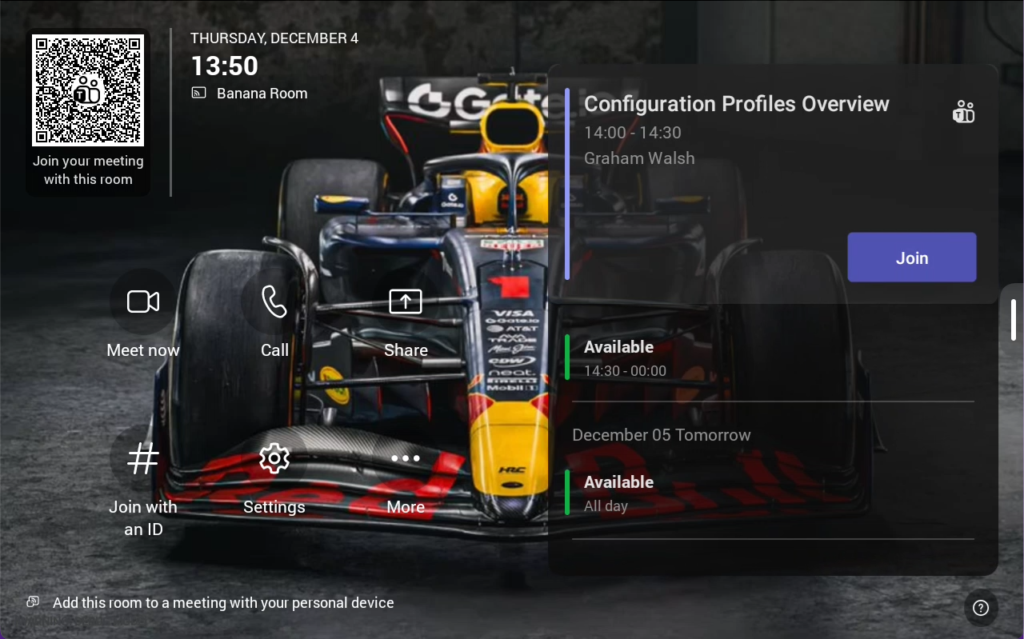
Here I’m going to focus on MTR-A and Teams Panels. It’s really simple to setup and apply to devices. One of my pet hates is the default wallpaper on devices. Brand it, make it personal!! The other issue is that if you reset a device, you have to go back into TAC and apply the profile to the device again. It doesn’t bring it down automatically.
Here’s a breakdown of what is available either on the device locally or which can be set via a configuration profile. You’ll need to be a Teams Devices admin to set these up. In addition, with Neat Pulse, everything is possible as you have full remote control to the devices.
Configuration Profiles for MTR-A - Teams Settings
These are the application specific settings for Microsoft Teams Rooms on Android DevicesLegend - ✅ Available / ❌ Not Available / 🚫 Not Applicable
| Local Device | Configuration Profile | |
|---|---|---|
| Logs and Feedback | ✅ | ✅ |
| Default Background | ✅ | ✅ |
| Custom Background | ❌ | ✅ |
| Enabled Touchscreen Controls | ✅ | ✅ |
| Turn on dual display mode | ✅ | ✅ |
| Show room QR Code | ✅ | ✅ |
| Automatically accept proximity-based meeting invitatiojns | ✅ | ✅ |
| Allow Bluetooth beaconing | ✅ | ✅ |
| Allow remote control from personal devices | ✅ | ✅ |
| Turn on daily maintenance window | ✅ | ✅ |
| Show Meeting Names | ✅ | ❌ |
| Enable people count | ✅ | ❌ |
| Max room occupancy notification | ✅ | ✅ |
| Show chat bubbles | ✅ | ❌ |
| Show meeting chat | ✅ | ❌ |
| Require passcode for all meetings | ✅ | ✅ |
| Extend room reservation | ✅ | ✅ |
| Show captions | ✅ | ✅ |
| Filter profane words in captions and transcript | ✅ | ✅ |
| Allow room to initiate Whiteboard | ✅ | ✅ |
| Enable HDMI content sharing | ✅ | ✅ |
| Include audio | ✅ | ✅ |
| Automaticall share to the room display | ✅ | ✅ |
| Default stage layout | ✅ | ❌ |
| Front row panel defaults | ✅ | ❌ |
| Thrid Party meetings - Webex and Zoom | ✅ | ❌ |
| Join with custom name and email | ✅ | ❌ |
| Camera Source | ✅ | ❌ |
| Local Camera PTZ control | ✅ | ✅ |
| Enhanced Framing | ✅ | ❌ |
| Framing Mode - Cloud IntelliFrame/Room/Active Speaker/Composite | ✅ | ❌ |
| Content Camera selection | ✅ ❌ Not available on Neat devices | ❌ |
| Console Pairing - automatically pair | ✅ | ❌ |
| Recognition - Local/Policy | ✅ | ❌ |
| Non-disruptive operations | ❌ | ✅ |
| Live Meeting Notes | ❌ | ✅ |
Here are the device settings for the room devices
Device Settings for MTR-A
These are the MTR-A device level settings that can be set on the device itself, via a configuration profile or via Neat Pulse.Legend - ✅ Available / ❌ Not Available / 🚫 Not Applicable
| On Device | Config Profile | Neat Pulse | |
|---|---|---|---|
| Language | ✅ | ✅ | ✅ |
| Timezone | ✅ | ✅ | ✅ |
| Date Format | ✅ | ✅ | ✅ |
| Time format | ✅ | ✅ | ✅ |
| Light / Dark mode | ✅ | ❌ | ✅ |
| Display Screen Saver | 🚫 on Neat devices | ✅ | 🚫 |
| Display backlight brightness | ✅ | ✅ | ✅ |
| Display high contrast | ✅ | ✅ | ✅ |
| Screen reader | ✅ | ❌ | ✅ |
| Font size | ✅ | ❌ | ✅ |
| Colour correction | ✅ | ❌ | ✅ |
| Silent Mode | 🚫 on Neat devices | ✅ | 🚫 |
| Office hours | 🚫 on Neat devices | ✅ | 🚫 |
| Power saving | ✅ | ✅ | ✅ |
| Screen capture | ❌ | ✅ | ✅ Remote Control |
| DHCP | ✅ | ✅ | ✅ Remote Control |
| Logging enabled | ✅ | ✅ | ✅ |
| Logging level | ✅ | ❌ | ✅ |
| User data reset | ✅ | ❌ | ✅ Remote Control |
| Factory reset | ✅ | ❌ | ✅ Remote Control |
| Host name | ✅ Via local WebUI | ✅ | ❌ |
| Domain name | ✅ Via local WebUI | ✅ | ❌ |
| IP Address | ✅ | ✅ | ✅ Remote Control |
| Subnet Mask | ✅ | ✅ | ✅ Remote Control |
| Default Gateway | ✅ | ✅ | ✅ Remote Control |
| Primary DNS | ✅ | ✅ | ✅ Remote Control |
| Secondary DNS | ✅ | ✅ | ✅ Remote Control |
| Device's admin password | ✅ | ✅ | ✅ Remote Control |
| Network PC Port | 🚫 | ✅ but 🚫 | 🚫 |
And now onto Microsoft Teams Panels, the scheduling devices that are outside the room
Configuration Profiles for Teams Panels - Teams Settings
These are the Microsoft Teams settings for the application.Legend - ✅ Available / ❌ Not Available / 🚫 Not Applicable
| On Device | Config Profile | |
|---|---|---|
| Default Backgrounds | ✅ | ✅ |
| Custom Backgrounds | ❌ | ✅ |
| LED Settings | ✅ ❌ on Neat Pad | ✅ ❌ on Neat Pad |
| Release room if no one checks in | ✅ | ✅ |
| Show meeting names | ✅ | ✅ |
| Show room equipment | ✅ | ✅ |
| Allow room reservations on device | ✅ | ✅ |
| Allow room reservations by QR code | ✅ | ✅ |
| Allow room reservation extensions | ✅ | ✅ |
| Allow early check-out | ✅ | ✅ |
| Device Pairing | ✅ | ❌ |
| Send check-in notification | ✅ | ✅ |
| Max room occupancy notification | ✅ | ✅ |
| Allow occupied state | ✅ | ❌ |
| Send booking notifications | ✅ | ❌ |
| Daily device restart window | ✅ | ✅ |
| Display Name | ❌ Only via Pro Portal | ❌ Only via Pro Portal |
| Non-disruptive operations | ❌ | ✅ |
| Maintenance Window | ❌ | ✅ |
And now let’s look at the hardware settings available for Teams Panels.
Device Settings for Teams Panels
These are the Teams Panels device level settings that can be set on the device itself, via a configuration profile or via Neat Pulse.Legend - ✅ Available / ❌ Not Available / 🚫 Not Applicable
| On Device | Config Profile | Neat Pulse | |
|---|---|---|---|
| Language | ✅ | ✅ | ✅ |
| Time zone | ✅ | ✅ | ✅ |
| Date format | ✅ | ✅ | ✅ |
| 24-hour time | ✅ | ❌ | ✅ |
| Time format | ✅ | ✅ | ✅ |
| NTP server | ✅ | ❌ | ✅ |
| Light / Dark mode | ✅ | ❌ | ✅ |
| Display screen saver | 🚫 on Neat devices | ✅ but 🚫 on Neat devices | 🚫 on Neat devices |
| Display backlight brightness | ✅ | ✅ | ✅ |
| Display backlight timeout | 🚫 on Neat devices | ✅ | 🚫 on Neat devices |
| Display high contrast | ✅ | ✅ | ✅ |
| Screen reader | ✅ | ❌ | ✅ |
| Font size | ✅ | ❌ | ✅ |
| Colour correction | ✅ | ❌ | ✅ |
| Silent mode | 🚫 on Neat devices | ✅ | 🚫 on Neat devices |
| Office hours | 🚫 on Neat devices | ✅ | 🚫 on Neat devices |
| Power saving | 🚫 on Neat devices | ✅ | 🚫 on Neat devices |
| Screen capture | 🚫 on Neat devices | ✅ | ✅ Remote Control |
| DHCP enabled | ✅ | ✅ | ✅ Remote Control |
| Logging enabled | ✅ | ✅ | ✅ |
| Logging level | ✅ | ❌ | ✅ |
| Remote Access setup | ✅ | ❌ | ✅ Remote Control |
| User data reset | ✅ | ❌ | ✅ Remote Control |
| Factory reset | ✅ | ❌ | ✅ Remote Control |
| Hostname | ✅ Via local WebUI | ✅ | ✅ Remote Control |
| Domain name | ✅ Via local WebUI | ✅ | ✅ Remote Control |
| IP Address | ✅ | ✅ | ✅ Remote Control |
| Subnet Mask | ✅ | ✅ | ✅ Remote Control |
| Default Gateway | ✅ | ✅ | ✅ Remote Control |
| Primary DNS | ✅ | ✅ | ✅ Remote Control |
| Secondary DNS | ✅ | ✅ | ✅ Remote Control |
| Device's admin password | ✅ | ✅ | ✅ Remote Control |
| Network PC Port | 🚫 | ✅ but 🚫 | 🚫 |
The configuration profiles are available in TAC today, but they will be moving over to the Teams Rooms Pro Portal at some point in 2026.
I previously did a video overview on configuration profiles, so if you prefer you can watch that. Above is the latest and greatest.
| On Device | Config Profile | |
| Logs and Feedback | ✅ | ✅ |
| Background | y | y |
| Custom Background | n | y |
| Enabled Touchscreen Controls | y | y |
| Turn on dual display mode | y | y |
| Show room QR Code | y | y |
| Automatically accept proximity-based meeting invitatiojns | y | y |
| Allow Bluetooth beaconing | y | y |
| Allow remote control from personal devices | y | y |
| Turn on daily maintenance window | y | y |
| Show Meeting Names | y | n |
| Enable people count | y | n |
| Max room occupancy notification | y | y |
| Show chat bubbles | y | n |
| Show meeting chat | y | n |
| Require passcode for all meetings | y | y |
| Extend room reservation | y | y |
| Show captions | y | y |
| Filter profane words in captions and transcript | y | y |
| Allow room to initiate Whiteboard | y | y |
| Enable HDMI content sharing | y | y |
| Include audio | y | y |
| Automaticall share to the room display | y | y |
| Default stage layout | y | n |
| Front row panel defaults | y | n |
| Thrid Party meetings – Webex and Zoom | y | n |
| Join with custom name and email | y | n |
| Camera Source | y | n |
| Local Camera PTZ cojntrol | y | y |
| Enhanced Framing | y | n |
| Framing Mode – Cloud IntelliFrame/Room/Active Speaker/Composite | y | n |
| Content Camera selection | y | n |
| Console Pairing – automatically pair | y | n |
| Recognition – Local/Policy | y | n |
| Non-disruptive operations | n | y |
| Live Meeting Notes | n | y |