
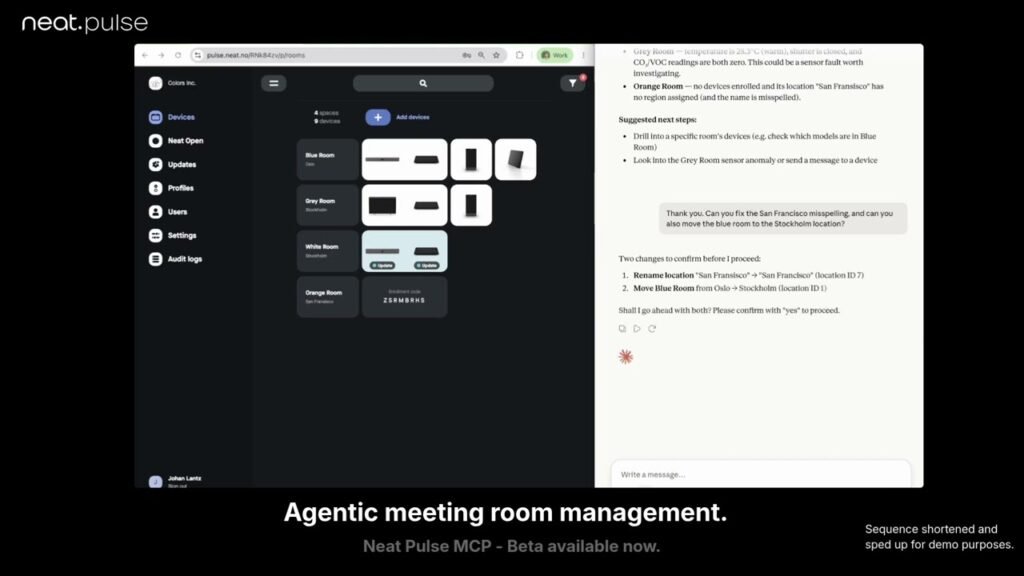
Pulse MCP beta demo video

All posts related to Polycom technology.
Is Your Device Management Ready for the Future?
This episode explains how to manage Android-based Teams Rooms and related devices using the Teams Rooms Pro Management Portal (PMP) and why Microsoft is shifting auto-update management from the Teams Admin Center (TAC) to PMP ahead of September 13. It shows how to confirm the move so that TAC auto-update rings no longer apply, with TAC only updating the admin agent to ensure access and full management in PMP. The script highlights the importance of updating the admin agent, notes that OEMs will bundle it with firmware (with Neat rolling it out soon via preview), and demonstrates that admins can still push updates per-device, track progress, review actions, and manage devices via update rings in PMP.
00:00 PMP Takes Over
00:26 Update Options
00:46 Switching From TAC
01:05 Admin Agent Only
01:22 OEM Firmware Rollout
01:37 Pushing Android Updates
01:43 Troubleshooting Updates
02:02 Granular Device Control
02:25 Office Hours Wrap Up
Transitioning from TAC to Pro Management Portal for Teams Read More »
Bulk Toggle Teams Devices Features with Device Jobs in Teams Rooms Pro Management Portal (PMP)
This episode shows how to use the new Device Settings “Jobs” feature in the Teams Rooms Pro Management Portal (PMP/Pro Portal) to quickly toggle a single setting on Teams Panels (e.g., room equipment/reserve) for one device or at scale across thousands without creating or changing configuration profiles/settings templates. The script demonstrates making an instant per-device change, viewing queued/running activity, then creating a job to apply the same toggle, noting that it doesn’t alter other template settings. It also highlights using device groups for bulk actions, mentions common use cases like meeting room occupancy issues, and explains the key requirement: devices must be on NeatOS 26.3, which can be pushed via the portal’s Updates/Firmware section. Two-way sync is also available.
00:00 Quick Toggle Overview
00:13 Shift to Pro Portal
00:31 Teams Panel Setup
01:08 Instant Single Change
02:18 Jobs for Bulk Toggles
03:31 Why Jobs Beat Profiles
04:04 Common Use Cases
04:24 Firmware Requirement
05:00 Wrap Up and Sync
Mastering Device Settings in the Microsoft Teams Rooms Pro Management Portal Read More »
Microsoft Teams Pro Management Portal for Teams Rooms on Android & Teams Panels (Neat Walkthrough)
Graham from Neat walks through managing Teams Rooms on Android and Teams Panels in the Microsoft Teams Pro Management Portal (PMP), starting with ensuring devices are updated in Teams Admin Center and highlighting that full PMP management requires the Microsoft Admin Agent version 8.30. He shows how PMP clusters front-of-room and touch devices together, enables filtering, and provides device details and searchable settings, with configuration changes applying instantly or via a maintenance window. The demo covers viewing signals and status, job history and events, collecting and downloading logs, and running actions like reboot and remote logout (one at a time). He explains Android update rings and scheduling, switching PMP to be the source of truth for updates, importing TAC configuration profiles as settings templates, assigning templates to rooms/devices, and notes custom backgrounds are not yet available but coming soon.
00:00 Intro and goals
00:09 Prep in Teams Admin Center
00:36 Why Admin Agent 830 matters
01:29 PMP dashboard and device list
02:35 Device settings and instant changes
04:07 Events logs and actions
05:00 Updates rings and rollout control
06:34 Switch updates source to PMP
07:01 Settings templates and imports
08:52 Apply templates and quirks
09:42 Wrap up and next steps
Live call with Matt Slomka, Kim Matlock and team next week. Sign up for that webinar here https://aka.ms/PMPAndroidMgmt
Mastering the Microsoft Teams Rooms Pro Management Portal for MTR-A and Teams Panel Read More »
Teams Rooms on Android (June Update): SIP/H.323 Dialing, Webinar Front-of-Room Control, Pexip Interop & Pro Management Portal Shift
Graham from Neat walks through the latest Teams Rooms on Android release, highlighting new front-of-room controls for webinars and structured meetings, private chat access for Town Hall organizers/co-presenters, and long-awaited outbound SIP/H.323 dialing via supported partners like Pexip (with incoming SIP noted as coming in a future release). He demonstrates enhanced cross-join SIP interoperability for Zoom/Webex using Pexip Interop to enable dual screen, 1080p, and HDMI content sharing, plus SIP Guest Join and ad-hoc joins by SIP URI. Other updates include meeting stage improvements, an option to open the chat panel by default, focus-on-content optimizations, one-touch speaker mute, removal of the in-meeting dial pad, PSTN interface support for India, Together Mode removal, and a fix for duplicate video feeds in large galleries. He also previews device management moving from Teams Admin Center to Teams Rooms Pro Management Portal with faster, fuller actions and phased rollout timelines.
00:00 Whats New Overview
00:16 Webinars Town Halls Control
00:51 SIP Dialing Arrives
01:15 Cross Join Interop Boost
01:48 Meeting Views Chat Audio
03:00 Pro Portal Management Shift
03:33 Enable Chat Default Setting
04:24 Meet Now Demo Changes
04:56 Zoom Webex Interop Demo
05:26 SIP Provider Dial Out
06:11 Join By ID Ad Hoc
06:58 PMP Migration Timeline
08:46 Wrap Up Next Steps
00:00 Teams Rooms on Android – June 2026 Release Highlights and Demos
Teams Rooms on Android – June 2026 Release Highlights and Demos Read More »
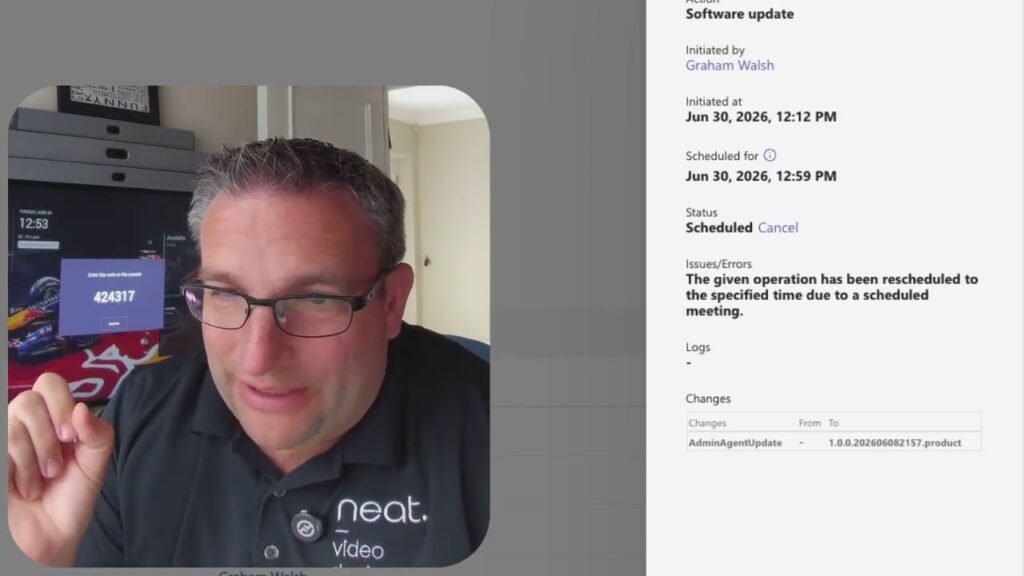
Why Your Microsoft Teams Panel Won’t Update During Meetings (Teams Admin Center Tip)
Graham from Neat shares a quick tip after trying to update a Teams panel that kept timing out. In the Teams Admin Center, he finds the message indicating the update operation was rescheduled because there was a scheduled meeting. The key takeaway is that Teams devices won’t update when a meeting is scheduled, helping prevent interruptions during meetings.
00:00 Update Keeps Timing Out
00:09 Teams Admin Center Clue
00:15 Meetings Block Updates
00:26 Quick Tip Wrap Up
Update Your Teams Device Without Interrupting Meetings Read More »