

Last Updated on November 26, 2026 by Graham Walsh
Best Ways to Sign In Microsoft Teams Room Devices (Neat Pad): Device Login, Neat Pulse, and Teams Pro Portal Provisioning
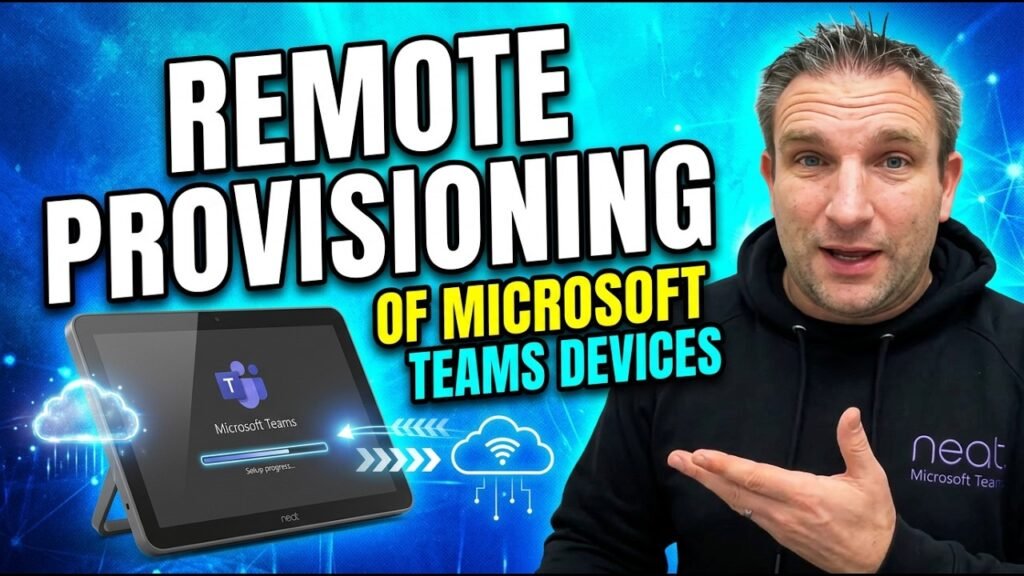
The script demonstrates several ways to sign in a Microsoft Teams device like a Neat Pad after initial setup: signing in directly on the device (often impractical on front-of-room hardware), using microsoft.com/devicelogin (aka.ms/devicelogin) to enter the displayed code, remotely accessing the device and code via Neat Pulse, and provisioning through the Microsoft Teams Pro Management Portal (PMP) for bulk deployments. It explains that PMP provisioning works for newly set up devices and typically requires a factory reset if a signed-out device needs to be signed back in, and it won’t automatically re-sign a device after a reset. The walkthrough covers adding an identity using the Ethernet MAC address, generating a verification code, completing remote sign-in in an incognito browser, and confirming the device moves from Android devices to the rooms table.
00:00 Teams Device Sign In Options
00:19 Device Login Code Method
00:38 Remote Sign In With Pulse
00:54 Provisioning In Pro Portal
01:41 Add Identity And Generate Code
02:40 Troubleshooting Provision Errors
03:02 Ethernet MAC Fix
03:44 Remote Sign In Flow
04:38 Why Provisioning Matters
05:14 Verify Device In Portal
05:48 Reset Limitations And Wrap Up