

Last Updated on June 25, 2026 by Graham Walsh
How to Set Up the Neat Pulse MCP Server (Beta) on Windows 11 with Claude Desktop
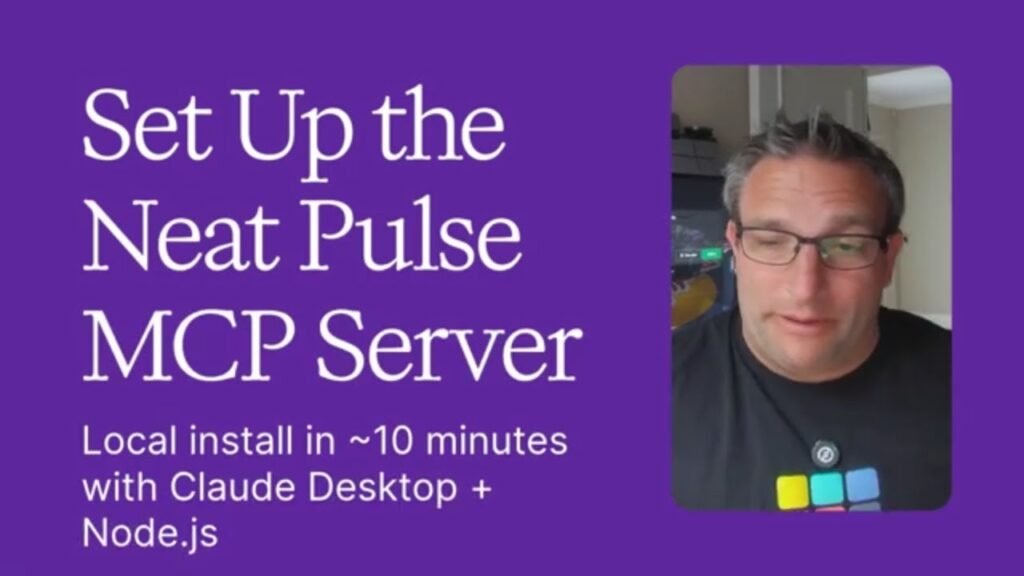
Graham from Neat walks through first-time setup of the Neat Pulse MCP server (beta) on a Windows 11 machine, announced at InfoComm in mid-June, explaining that the MCP runs locally and enables efficient interaction with the Neat Pulse platform. He reviews beta capabilities such as listing and managing rooms, rebooting devices, creating and changing room configurations, generating enrollment codes, checking Neat Sense sensor data, and sending room messages, noting setup takes about 10 minutes and requires a paid Pulse subscription for API access. Using the support guide, he installs Node.js 18+ and Claude Desktop, creates and copies a Pulse API key (read or read/write) and tenant/organization ID, adds the MCP configuration to Claude’s config JSON, troubleshoots JSON bracket/comma errors (using Code Writer and Claude), restarts Claude, and confirms the MCP is running by querying the number of meeting rooms and creating a project.
00:00 Intro and MCP overview
00:36 Beta features and requirements
01:00 Find the MCP beta guide
01:19 Choose your AI assistant
02:03 Install Node and Claude
03:03 Create Pulse API keys
04:32 Build the MCP command
05:30 Edit Claude config JSON
06:43 Fix JSON errors
08:48 Test MCP in Claude
09:31 Wrap up and cautions
09:51 Config file location recap
News article – https://neat.no/stories/debuting-agentic-meeting-room-management-with-neat-pulse-mcp/
Support / Setup Article – https://support.neat.no/article/neat-pulse-mcp-server/